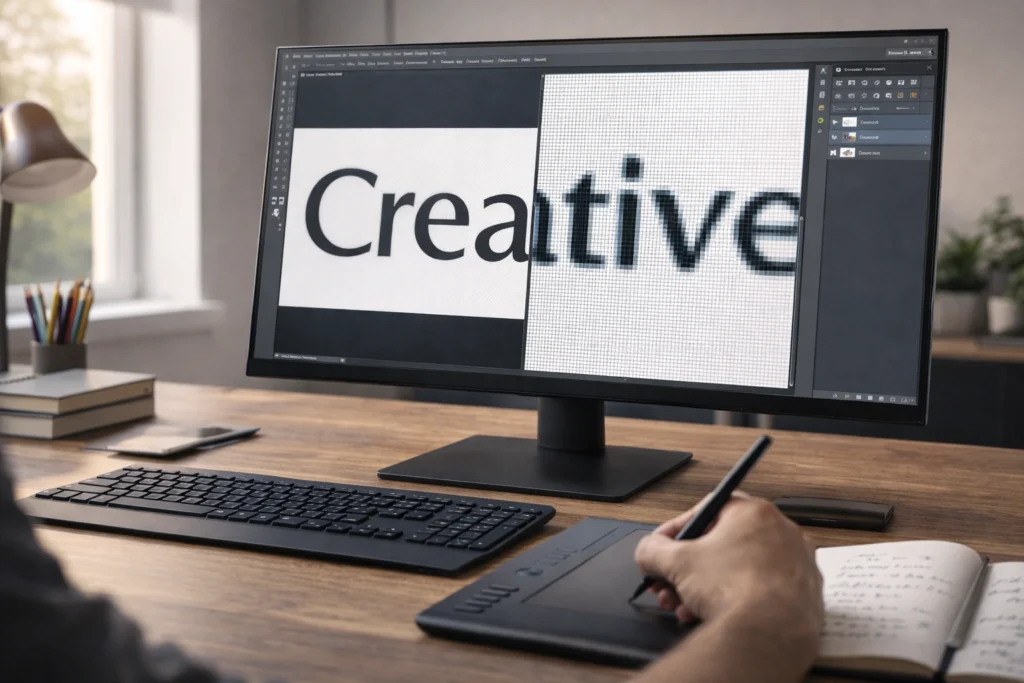
Rasterize in Photoshop means converting a vector layer, smart object, text layer, or shape into a pixel based image so you can edit it using pixel tools like the brush, eraser, or filters.
Once rasterized, the layer loses its scalability and becomes resolution dependent.
If you have ever tried to use the brush tool on a text layer and Photoshop told you that the layer must be rasterized first, you have already encountered this feature.
You are working on a design. Add text. Try to erase part of it. Suddenly Photoshop shows a message asking if you want to rasterize the layer.
Confusing, right?
Many beginners wonder what does rasterize mean in Photoshop and whether clicking that button will ruin their design. The truth is that rasterizing is neither good nor bad. It simply changes how your layer behaves.
Understanding rasterization can save your design from quality loss, help you work faster, and prevent costly mistakes. In this complete guide, you will learn what rasterize means, where the term comes from, when to use it, when to avoid it, and how it affects your workflow.
What Does Rasterize Mean in Photoshop?
In simple words, rasterize means converting something editable and scalable into pixels.
Photoshop works with two main types of graphics:
- Vector graphics
- Raster graphics
When you rasterize a layer, Photoshop turns it into tiny colored squares called pixels. After that, the layer behaves like a normal image.
Before Rasterizing
• Text remains editable
• Shapes remain scalable without quality loss
• Smart Objects preserve original data
• You cannot directly paint or erase parts
After Rasterizing
• The layer becomes pixel based
• You can use brush, eraser, and filters
• You cannot edit text or shape properties
• Scaling up may reduce quality
Origin of the Term Rasterize
The word raster comes from early television and computer display technology. A raster refers to the grid of pixels used to display images on a screen.
In digital imaging, raster graphics are made of pixels arranged in rows and columns. Programs like Adobe Photoshop are primarily raster based editors.
Photoshop was created by Thomas Knoll and John Knoll and released in 1990 by Adobe Inc. It became popular because it allowed pixel level image manipulation. Over time, Adobe added vector features like shape layers and smart objects. That is why rasterizing became necessary when switching from vector behavior to pixel editing.
Why Is Rasterizing Popular in Photoshop?
Rasterizing is common because many editing tools only work on pixel layers.
For example:
• Smudge Tool
• Blur Tool
• Eraser Tool
• Some Filters
• Brush Tool
If you try to use these tools on text or shape layers, Photoshop will ask you to rasterize.
This makes rasterizing a routine action in graphic design, photo editing, social media content creation, and digital art.
How to Rasterize a Layer in Photoshop
Here is the simple process:
- Select the layer in the Layers panel
- Right click on the layer
- Click Rasterize Layer
You can also go to the top menu:
Layer → Rasterize → Choose layer type
Photoshop allows you to rasterize specific elements like:
• Type
• Shape
• Smart Object
• Video
• 3D layer
Types of Layers That Can Be Rasterized
Below is a helpful table to understand what can be rasterized and what changes afterward.
Table 1: Rasterizable Layers in Photoshop
| Layer Type | Editable Before Rasterize | Editable After Rasterize | Quality When Resized |
|---|---|---|---|
| Text Layer | Yes, text can be changed | No, becomes image | May lose quality |
| Shape Layer | Yes, scalable vector | No, becomes pixels | May lose quality |
| Smart Object | Yes, non destructive | No, permanent pixels | Depends on resolution |
| Adjustment Layer | Yes, flexible | Cannot rasterize directly | Not applicable |
| 3D Layer | Yes | Converted to image | Fixed resolution |
Real World Usage of Rasterizing
Rasterizing is used daily in:
• Logo customization
• Social media post design
• Thumbnail creation
• Poster design
• Photo manipulation
• Digital painting
For example, a designer may create clean vector text for a YouTube thumbnail. Then they rasterize it to add scratches, paint effects, or texture overlays.
Without rasterizing, those effects would not apply properly.
Friendly Example of Rasterizing
You create bold text saying SUMMER SALE.
You want to make it look like melting ice cream. 🍦
To distort and paint over the letters freely, you rasterize the text layer first. Now you can:
• Smudge edges
• Add drips
• Erase parts
• Add shadows manually
Result: Creative freedom.
Neutral Example
A photographer converts a smart object into pixels to apply a specific filter that does not support smart filters.
It is a technical decision, not emotional. Just workflow efficiency.
Negative or Risky Example
A beginner rasterizes a logo too early. Later they want to change the font.
Problem: The text is no longer editable.
They must recreate it from scratch.
Lesson: Always duplicate your layer before rasterizing.
Rasterize vs Smart Object
Many users confuse these two.
Table 2: Rasterize vs Smart Object
| Feature | Rasterized Layer | Smart Object |
|---|---|---|
| Editable text | No | Yes |
| Non destructive editing | No | Yes |
| Supports pixel tools | Yes | Limited |
| Scalable without loss | No | Yes |
| Recommended for flexibility | No | Yes |
Smart Objects preserve original quality. Rasterized layers do not.
If you want safety, use Smart Objects. If you want pixel freedom, rasterize.
Rasterize vs Flatten Image
These are different actions.
Table 3: Rasterize vs Flatten
| Action | What It Does | When to Use |
|---|---|---|
| Rasterize | Converts specific layer to pixels | When applying pixel based edits |
| Flatten Image | Merges all layers into one | Before exporting final file |
Flattening removes layer structure. Rasterizing only affects selected layers.
When Should You Rasterize?
Rasterize when:
• You need to use brush or eraser
• You want custom texture effects
• You are finalizing design details
• You are exporting for web and no longer need edits
Do not rasterize when:
• Client revisions are expected
• Text may need changes
• You may resize significantly
• You want non destructive workflow
Does Rasterizing Reduce Quality?
Rasterizing itself does not reduce quality instantly. However, resizing afterward can.
If you enlarge a rasterized layer, pixels stretch and blur.
Vector layers can scale infinitely without losing clarity. Raster layers cannot.
Alternate Meaning of Rasterize
Outside Photoshop, rasterize means converting vector graphics into raster images in other design software like Illustrator, CorelDRAW, or even printing systems.
In video editing, rasterization can refer to rendering vector graphics into frame based pixels.
In general computing, rasterization is the process of turning mathematical shapes into screen pixels.
Professional Alternatives to Rasterizing Too Early
If you want flexibility, consider:
• Convert to Smart Object instead
• Duplicate the layer first
• Use layer masks instead of erasing
• Apply smart filters
These methods protect your original design.
Common Mistakes Beginners Make
- Rasterizing too early
- Forgetting to duplicate layers
- Confusing flatten with rasterize
- Enlarging rasterized text later
- Losing editability permanently
Pro tip: Always save a PSD version before rasterizing important elements.
Practical Workflow Tip
Professional designers often:
- Finish layout
- Duplicate text layer
- Hide original
- Rasterize duplicate
- Apply effects
This ensures safety and flexibility.
FAQs
What happens when you rasterize a layer in Photoshop?
When you rasterize a layer, Photoshop converts it into pixels. You can edit it with pixel tools, but you cannot edit text or vector properties anymore.
Is rasterizing bad in Photoshop?
No, it is not bad. It depends on your workflow. Rasterizing is useful for applying detailed pixel edits but removes flexibility.
Can I undo rasterize in Photoshop?
You can undo immediately using Ctrl Z. But once saved and closed, you cannot revert unless you have a backup or smart object.
Does rasterizing reduce image quality?
Not immediately. However, resizing a rasterized layer larger than its original size can reduce sharpness.
Why does Photoshop ask me to rasterize text?
Photoshop asks because tools like brush or eraser only work on pixel layers, not vector text layers.
Should I rasterize before applying filters?
Some filters require rasterizing. However, converting to a smart object allows non destructive filters instead.
What is the difference between rasterize and flatten image?
Rasterize converts one layer into pixels. Flatten merges all layers into a single layer.
Can I edit text after rasterizing?
No. After rasterizing, text becomes an image and cannot be edited as text.
Conclusion:
So what does rasterize mean in Photoshop?
It means converting scalable or editable layers into pixel based images so you can manipulate them freely with pixel editing tools.
Rasterizing gives you creative control but removes flexibility. It is powerful when used intentionally and risky when used carelessly.
Remember these practical tips:
• Duplicate layers before rasterizing
• Use Smart Objects for flexibility
• Rasterize only when necessary
• Avoid enlarging rasterized layers
• Save editable PSD versions
Mastering rasterization is part of mastering Photoshop. Once you understand when and why to use it, your design workflow becomes smoother and more professional.
Read More Related Articles:
- EDT Mean in Perfume: Light, Fresh and Perfect for Daily Wear In 2026
- HP Meaning in Games: Everything You Need to Know to Play Better (2026)
- Meaning of Je Ne Sais Quoi in French: A Complete Guide in 2026

John Miller is a professional meanings writer at Meanzy.com, specializing in word definitions, internet slang, acronyms, and text abbreviations. He focuses on delivering clear, accurate explanations with practical examples, helping readers easily understand modern digital terms and their real-life usage.